UX Design 101: From User Goals to Wireframes
Learn UX design fundamentals by turning one user goal into a screen you can defend: tasks, flows, UX writing, layout, Figma, AI tools, usability.

You. The designer, or the person facilitating.

Other people. Users, colleagues, stakeholders.

Interface. Anything people act on or through: a sticky note, a document, a screen, a prototype. Drawn flat or tilted.
-
Environment. Where the action happens.
-
Transition. The move from one state to the next.
The diagrams in these courses use The Shape of Clarity, a small visual notation. Five shapes are enough.
Small labels or icons say what an interface holds: a question (?), an insight (!), ideas (a light bulb), a decision (a check mark). Speech bubbles and the chart symbol, for evidence, are added on top of the notation when needed; they are not part of it.
Read the notationContents
- About this course
- 1. The map: where UX design sits
- 2. UX vs. UI: the scene vs. the surface
- 3. From goal to task
- 4. Flow before screen
- 5. Words as the first interface
- 6. Layout: hierarchy and patterns
- 7. Fidelity and tools: paper → wireframe → Figma → AI
- 8. Good vs. bad UX: three lenses on one scene
- 9. Decision trail: a synthesis you can trace
- 10. How to keep learning
About this course
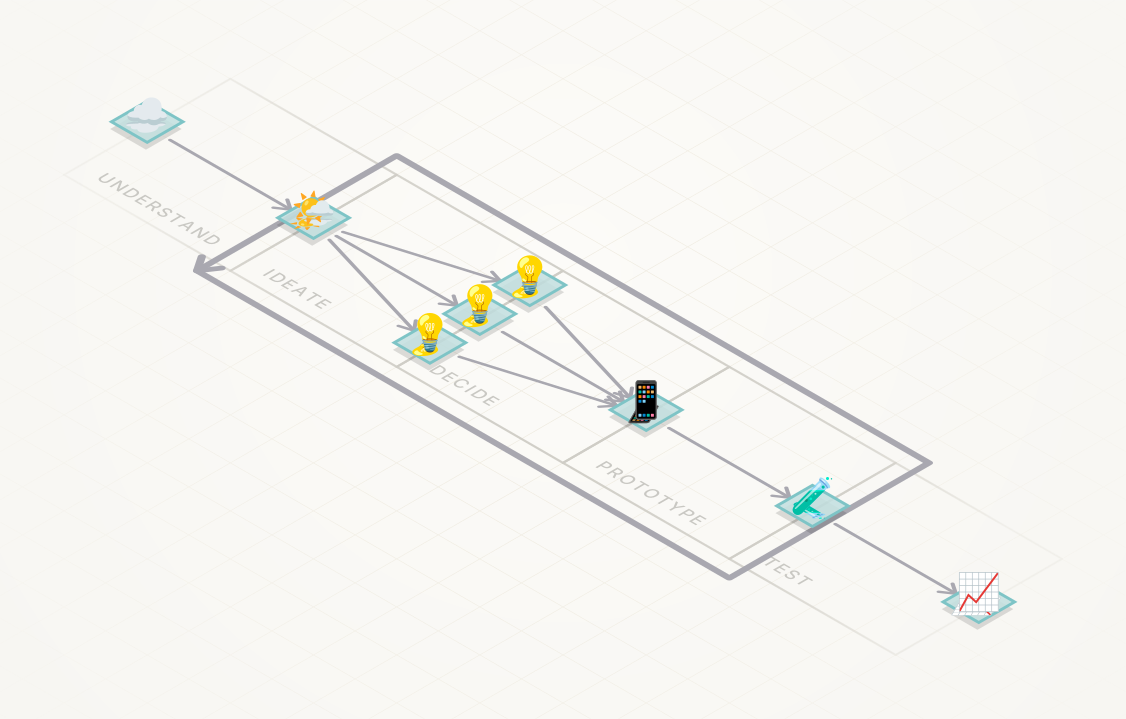
There is one design loop: the five-step algorithm of Design Thinking 101, which applies to any design discipline. UX design is that loop applied to the design of things meant to be useful, from a physical object like a screwdriver to a human-machine system like a SpaceX rocket. Product design is the same loop applied to products, a narrower set: some useful things are not products (services, documents, environments).
This course focuses on the design of digital products, and on the basic concepts involved in building and improving them. UX Research 101 covers the steps where the loop touches reality (Understand and Test). This course puts its weight on the stretch from ideas to prototype, where the bulk of the design work usually is: organizing structure and behaviour.
An interface is not drawn; it is derived: goal → tasks → flow → words → layout → evaluated interface. Every element on the screen must trace back to something: a finding, a task, a heuristic.
- Who it is for: people who have never taken a design course, especially those coming from communications, who want to design a screen they can defend.
- How it works: self-paced. Each section has a short explanation, a diagram, an exercise (Do), and readings (Read), data-oriented sources first. You will need Figma at a basic level (the free plan is enough).
- Your case: use the same digital product as in Design Thinking 101 and UX Research 101. It is either a build case (it doesn’t exist yet and must be built right) or an evolve case (it exists and must change). The trajectory in sections 3 to 7 is your final deliverable.
- Scope: one user type, one goal, one flow, existing patterns, evaluated with heuristics and one small test.
- Out of scope: information architecture beyond one flow, authoring design systems, advanced facilitation and organizational politics (the basic model is in Design Thinking 101), advanced ergonomics, and visual design craft. More advanced courses, covering deeper technical aspects and more complex systems, are available.
1. The map: where UX design sits
You already know the algorithm (Design Thinking 101) and how research feeds it (UX Research 101). UX design is the same loop applied to things meant to be useful; this course applies it to digital products. Its core is what happens between an idea and a testable interface.
Do. Place three pieces of your own work (a campaign page, a form, a newsletter) on the loop. Which ones were designed without a decision behind them? Then name your case: build or evolve?
Read.
- NN/g, UX Basics: Study Guide
- Garrett (2010), The Elements of User Experience
2. UX vs. UI: the scene vs. the surface
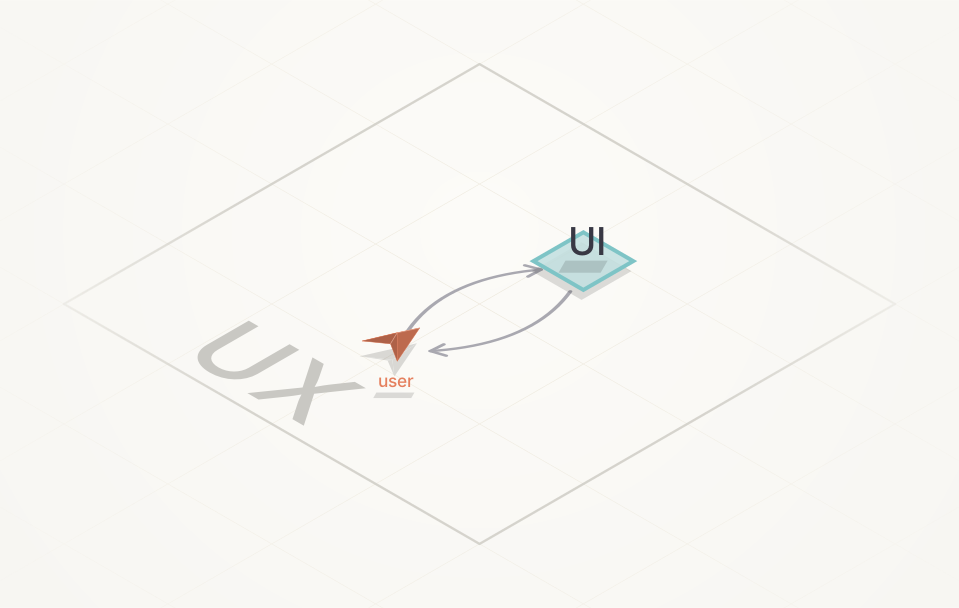
UX is the whole scene: people, interface and environment, over time. UI is the surface of the teal box: what the user sees and touches. A perfect UI cannot rescue a scene where the product fails the goal.
Product design is the same loop applied to products. UX design covers more ground, because some useful things are not products: a service, a document, an environment. In job titles, product designers usually also carry the product’s business side (what gets built, for whom, and why it is viable).
Do. Pick an app you use. Name one failure that no UI change could fix, and one that only a UI change could fix.
Read.
- NN/g, The Definition of User Experience (UX) (Norman & Nielsen)
- NN/g, UX vs. UI (video)
- IxDF, Product Design and UX Design Roles
- Garrett (2010), The Elements of User Experience
3. From goal to task
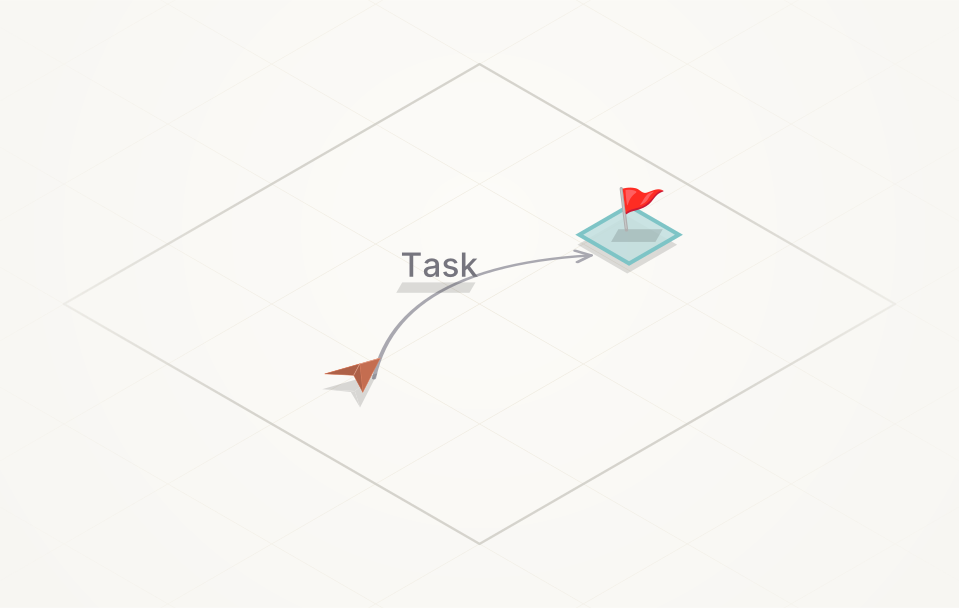
A screen serves a task; a task serves a goal. Write the goal in the user’s words, then the three to five tasks that reach it. No task, no screen.
Do. Starting from your research insights, write one goal, three tasks, and one success criterion per task (“done when…”).
Read.
- NN/g, Task Analysis
- NN/g, Personas vs. Jobs-to-Be-Done
4. Flow before screen
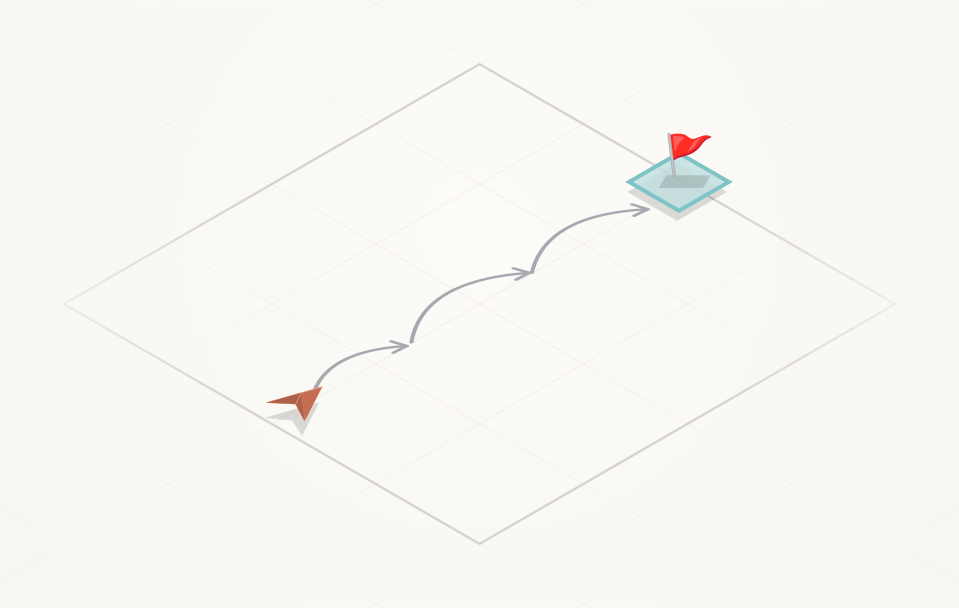
A screen is one state in a path. Draw the path first: entry, steps, decisions, exit, and one error. This is the only information architecture a 101 course needs.
Before you draw, make one strategic choice: universal or personalized? Either you design one interface that works for the widest range of people, or you adapt the interface to specific profiles. Both are valid. Make the choice explicitly, and make it now, because it shapes the flow, not just the surface.
Do. State your choice (universal or personalized) and why, in one sentence. Then draw the happy path in six states or fewer, plus one error path, on paper. Evolve case: map the current flow first, then mark where it breaks. Before moving on, swap flows with someone else for five minutes of feedback.
Read.
- NN/g, User Journeys vs. User Flows
- Covert (2014), How to Make Sense of Any Mess
- Center for Universal Design, NC State (1997), The Principles of Universal Design
- Microsoft, Inclusive Design
5. Words as the first interface
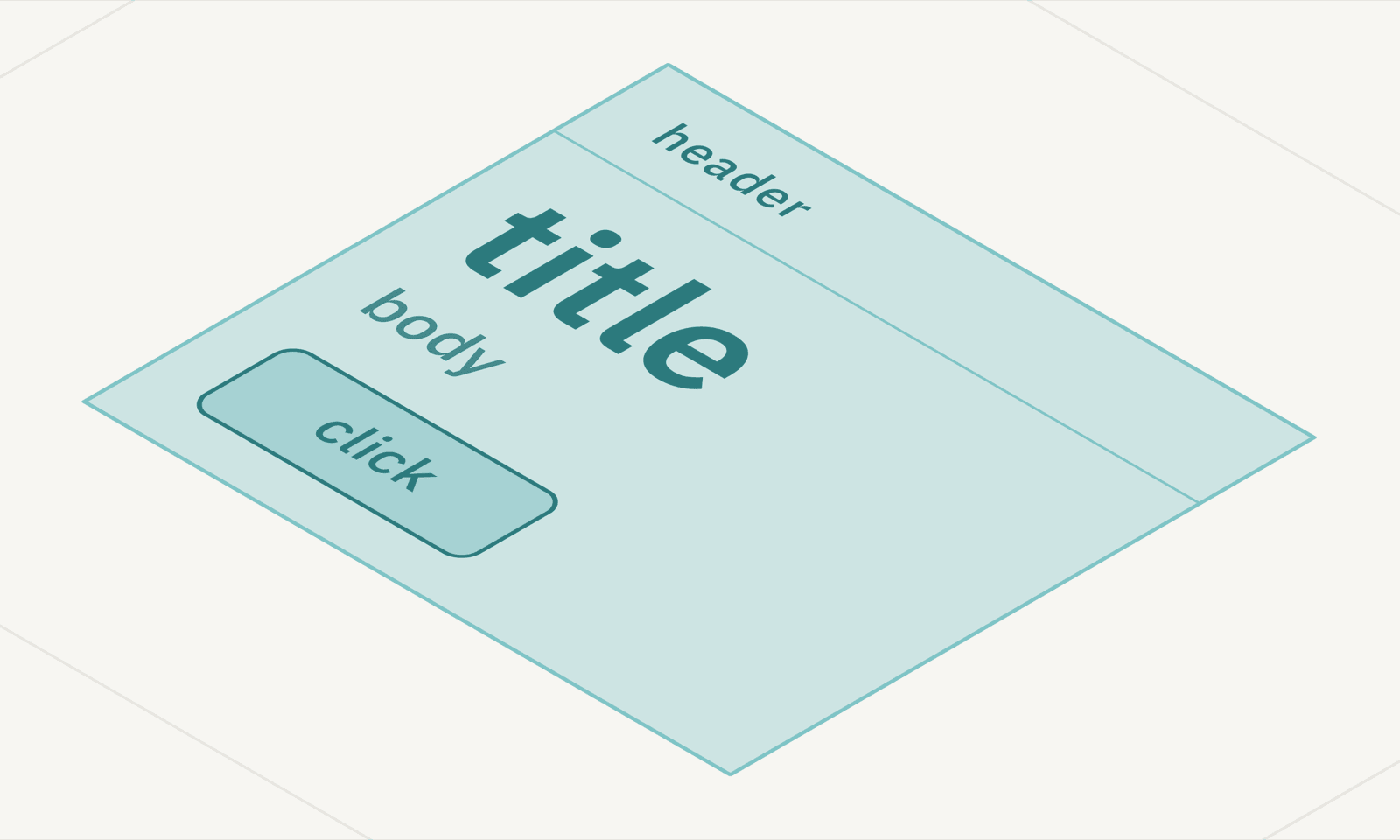
Products are made of words. Write before you draw. Headings, labels, buttons, error messages and empty states carry most of the user experience. Speak the user’s language (heuristic #2 in Nielsen’s list). This is where communications professionals start ahead.
Do. Write every word of your key screen, including one error message and one empty state. No layout yet.
Read.
- NN/g, How Users Read on the Web
- NN/g, Error-Message Guidelines
- GOV.UK, Content design: planning, writing and managing content
- Richards (2017), Content Design
6. Layout: hierarchy and patterns
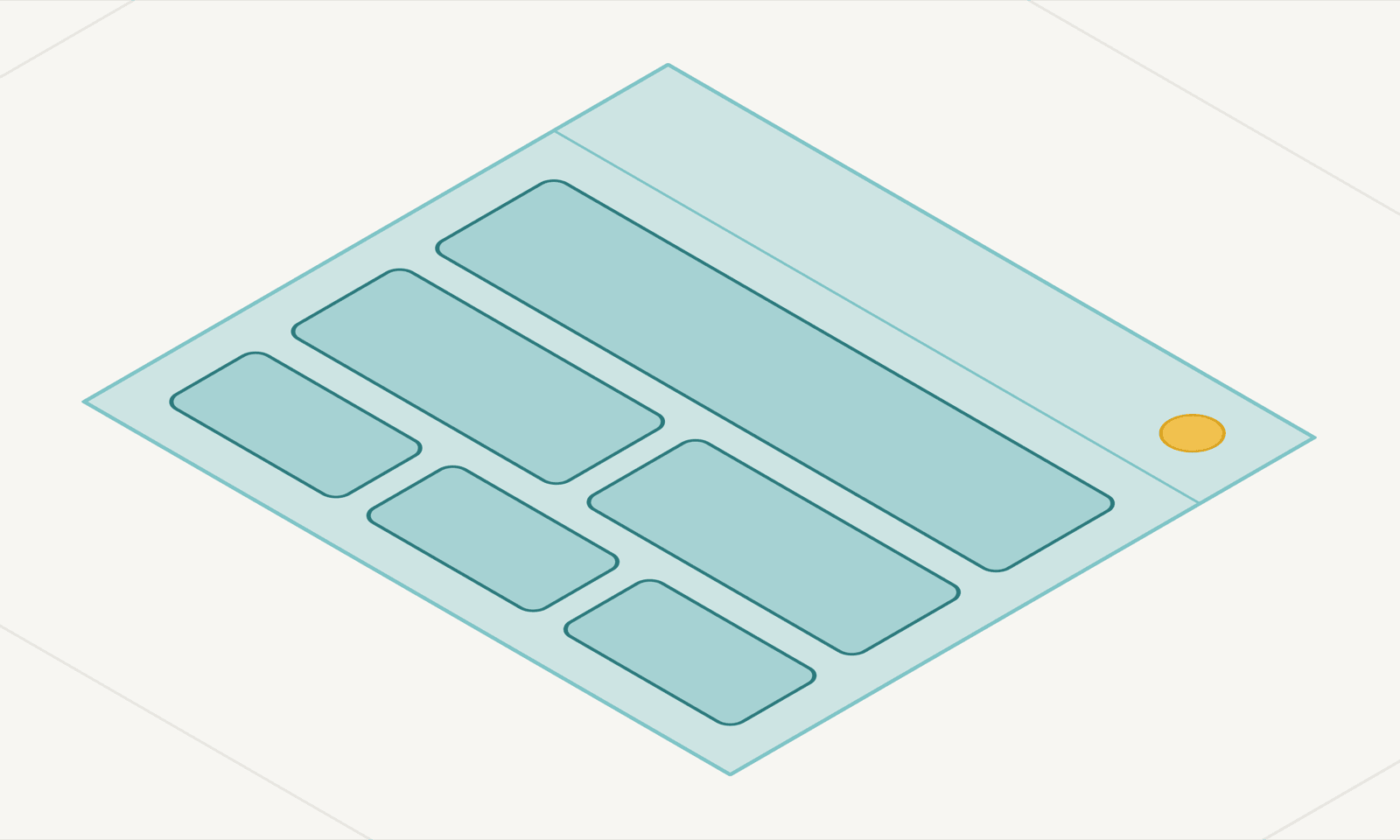
Don’t invent; reuse conventions users already know (Jakob’s law). Order the words by importance, then use size, contrast, position and grouping to make that order visible.
Do. Make three grayscale wireframe alternatives of your key screen, each built from an existing pattern taken from a public design system. Pick one and defend it to someone else in two minutes; take one critique before moving on.
Read.
- Yablonski, Laws of UX
- NN/g, Visual Hierarchy in UX: Definition
- GOV.UK Design System and Canada.ca Design System: patterns to reuse
- Wathan & Schoger, Refactoring UI
7. Fidelity and tools: paper → wireframe → Figma → AI
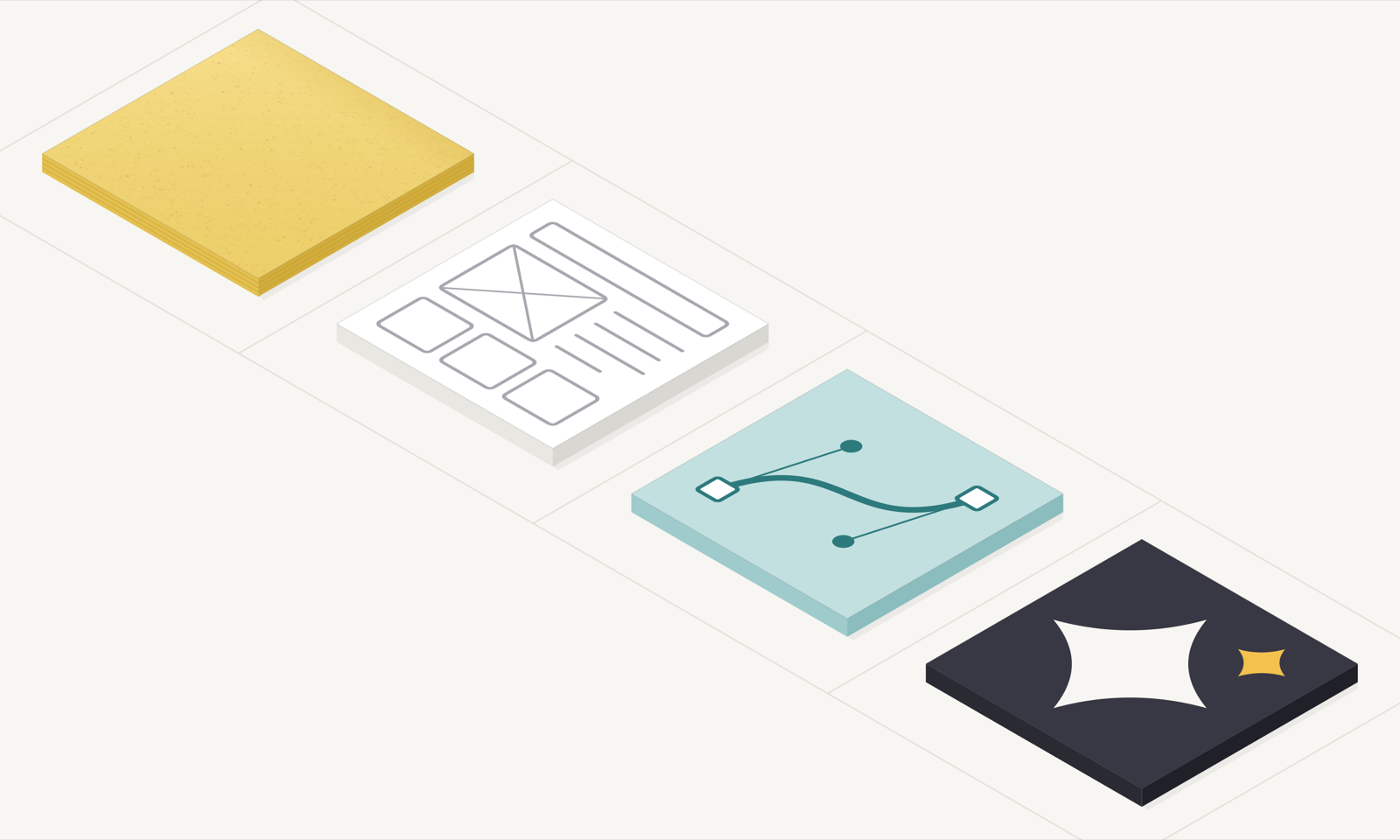
Fidelity is chosen by the question you need to answer, not by ambition (see Design Thinking 101, section 8). The Figma minimum: frames, text, shapes, components from a kit, and links between frames.
Figma is paired with a free AI tool, for example Google Stitch (free at the time of writing; check its current free tier before relying on it). AI tools generate plausible screens fast. They do not weigh trade-offs: that remains your job.
Do. In Figma, build your chosen wireframe as a clickable flow: frames, text, kit components, links, nothing more. Then give the AI tool your goal, tasks, flow and words as a specification, bring its output into Figma, and compare it to yours using the criteria of section 8. What did it get right? What did it invent without a source?
Read.
- Figma Learn, Figma Design for beginners
- NN/g, UX Prototypes: Low Fidelity vs. High Fidelity
- NN/g, AI Prototyping in Real Design Contexts
- Google, Stitch
- Houde & Hill (1997), What Do Prototypes Prototype?
8. Good vs. bad UX: three lenses on one scene
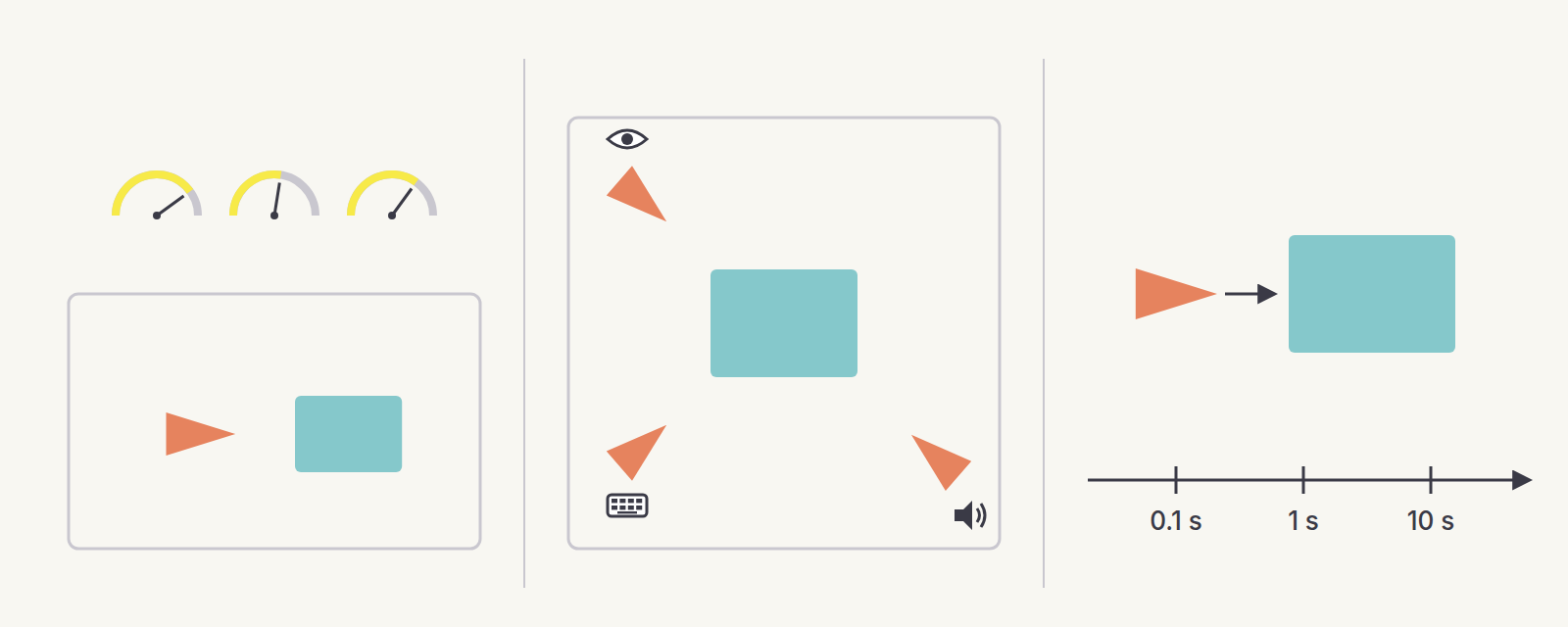
“Good” is not a matter of taste. The ISO 9241-11 standard defines usability for specified users with specified goals in a specified context (the scene itself), measured by effectiveness, efficiency and satisfaction. Three lenses apply.
Usability. Inspect your design with Nielsen’s ten heuristics, then confirm with users. Five per round is the reference, and one is better than none (see UX Research 101, “Usability testing”). The same heuristic pass is also the quickest early diagnosis of an existing product, so in an evolve case use it early, not only at the end.
Accessibility. Good for whom? The strategic choice (universal or personalized) was made in section 4. Here are the standards that apply either way. The other orange triangles in the scene become real people: someone with low vision, someone using only a keyboard, someone using a screen reader. Québec’s public standard (SGQRI 008 3.0) targets WCAG level AA.
Performance. Good when? Perceived speed and feedback matter. Nielsen describes three limits: 0.1 second feels instant, 1 second keeps the flow of thought, 10 seconds is the limit of attention. Every wait needs a visible status.
Do. Run a heuristic evaluation of your own flow and of one public website, rating each problem from 0 to 4 for severity. Do a keyboard-only pass and write alt text for your screen. Design the feedback for one waiting state.
Read.
- NN/g, 10 Usability Heuristics for User Interface Design
- NN/g, How to Conduct a Heuristic Evaluation
- ISO 9241-11:2018, Usability: Definitions and concepts
- Krug (2014), Don’t Make Me Think, Revisited
- Norman (2013), The Design of Everyday Things, revised edition
- W3C WAI, Accessibility Fundamentals
- Gouvernement du Québec, Standard sur l’accessibilité des sites Web (SGQRI 008 3.0)
- NN/g, Response Times: The 3 Important Limits
9. Decision trail: a synthesis you can trace
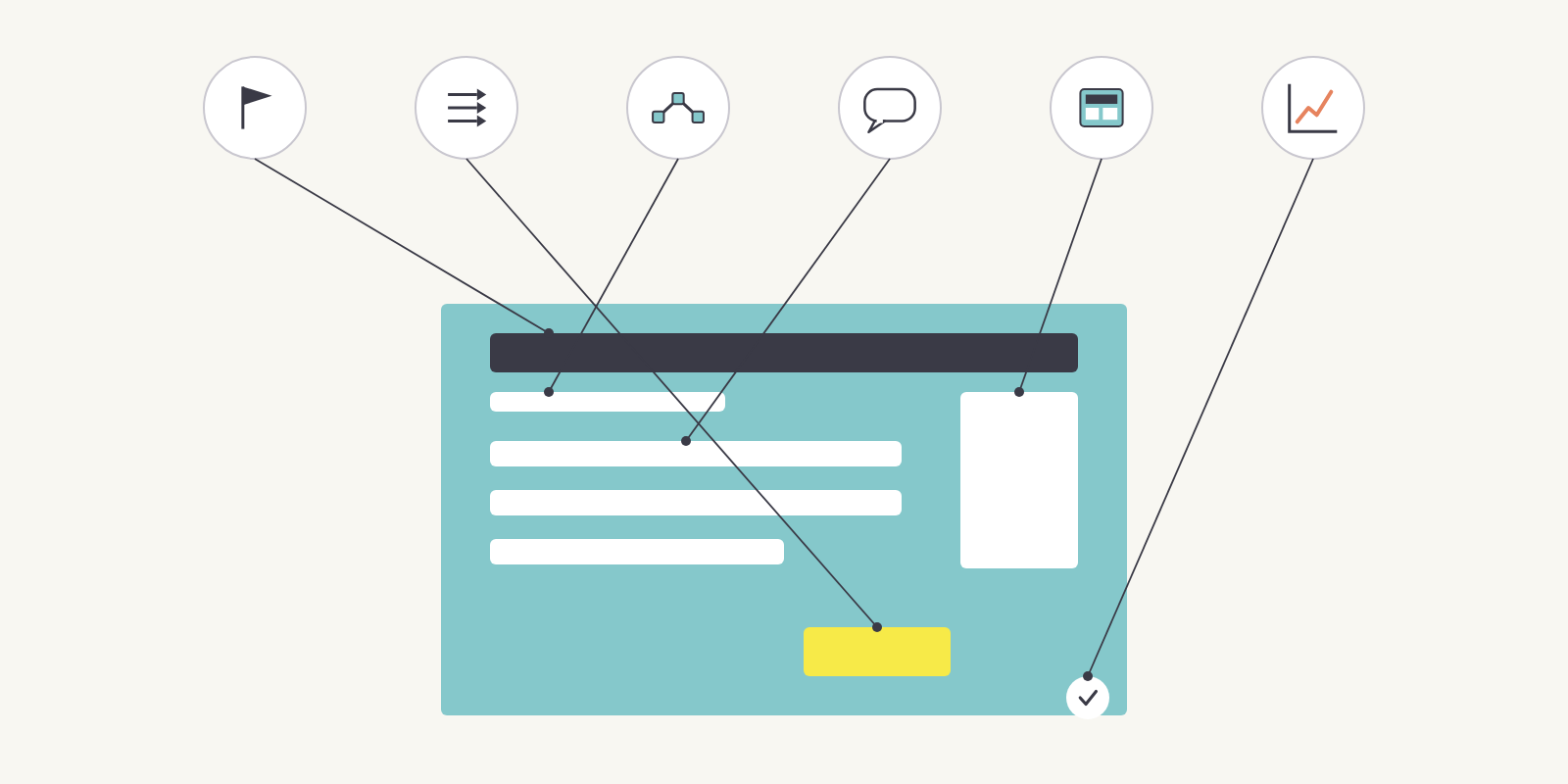
The deliverable is not a pretty screen. It is a screen whose every element points back to a goal, a task, a finding or a heuristic. A decision trail is always a synthesis, but not every synthesis contains a decision trail.
The trail is what separates design from decoration. The same annotations serve two readers: the people who will build the interface (the handoff, with every element explained) and the people who might hire you (a case study that shows how you think, not only what you drew, and an honest one rather than a fabricated one).
Do. Annotate your final screen: tag each element with its source. Present it in three minutes and ask for feedback on the trail, not on the look.
10. How to keep learning
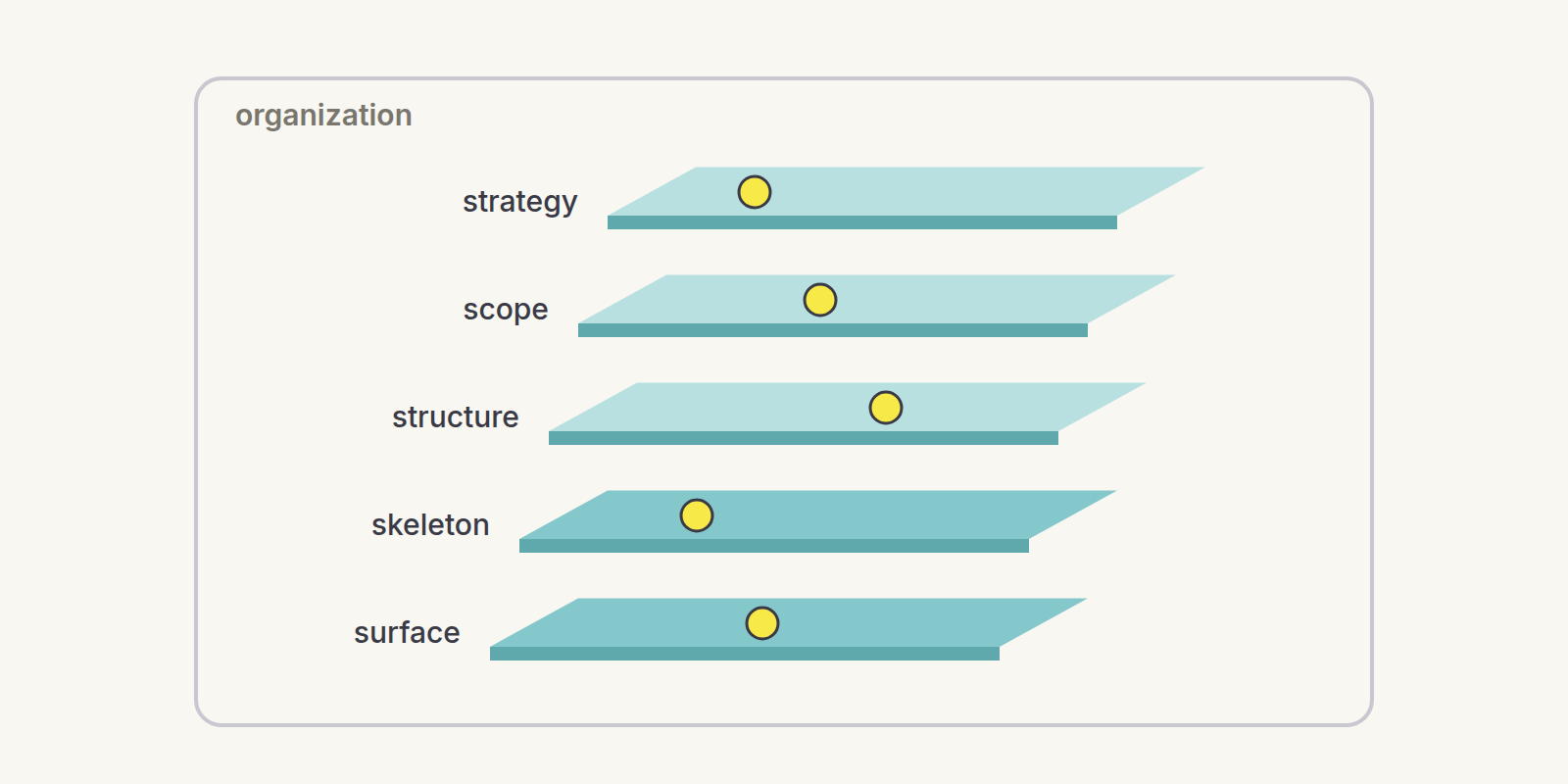
A 101 course teaches you to see and to name. Mid-level teaches you to choose between trade-offs across many screens and many users. Advanced teaches you to make it happen among people. Here is a path, one entry point per dimension.
Do. Start a teardown habit: one screen per week, three heuristics, one rewrite.
Read.
- NN/g, Growing in Your UX Career: Study Guide
- Information architecture: Rosenfeld, Morville & Arango (2015), Information Architecture, 4th edition
- Interaction design: Cooper et al. (2014), About Face, 4th edition
- Visual design: Wathan & Schoger, Refactoring UI
- Content: Richards (2017), Content Design
- Accessibility: W3C WAI, Accessibility Fundamentals
- Research: UX Research 101
Bring clarity and structure to your team
The same method, applied to your organization: a fixed-scope diagnostic with one price, one timeline and a deliverable described up front.